How to Enable 360 Monitoring Inside Plesk: A Comprehensive Guide
When it comes to monitoring server health and performance, Plesk is a powerful tool that many webmasters and system administrators rely on. However, enhancing its capabilities with 360 Monitoring can transform your Plesk experience, offering a deeper insight into your server's operation. In this detailed guide, we'll walk you through the steps to integrate 360 Monitoring into your Plesk setup, ensuring you're equipped to maintain peak performance at all times.
Introduction to 360 Monitoring and Plesk
360 Monitoring is a service that provides real-time insights into your server's health, including metrics on load, disk usage, and more. Plesk, on the other hand, is a versatile server management platform that simplifies a variety of tasks for web administrators. Combining these two can significantly enhance your server management capabilities.
Prerequisites for Integration
Before integrating 360 Monitoring into your Plesk server, ensure you meet the following requirements:
- A working instance of Plesk
- Administrative access to the server
- An active 360 Monitoring subscription
Step-by-Step Activation Process
Step 1: Installing the 360 Monitoring Extension
- Log into your Plesk panel.
- Navigate to the 'Extensions' menu.
- Search for '360 Monitoring' and install the extension.
Step 2: Configuring the Extension
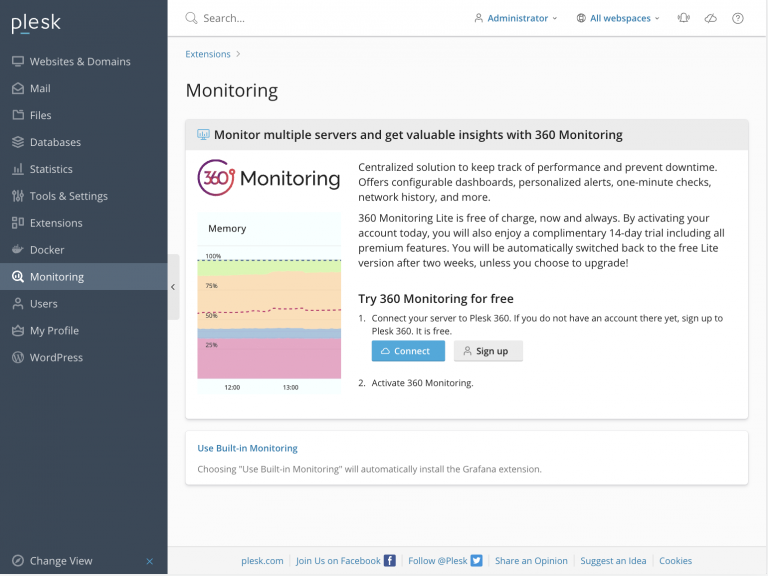
- Upon your subscription of 360 Monitoring, you will receive a welcome email from our system for your activation of your 360 Monitoring account. Ensure this is activated before move to the next step.
- Open the 360 Monitoring extension from the 'My Extensions' tab.
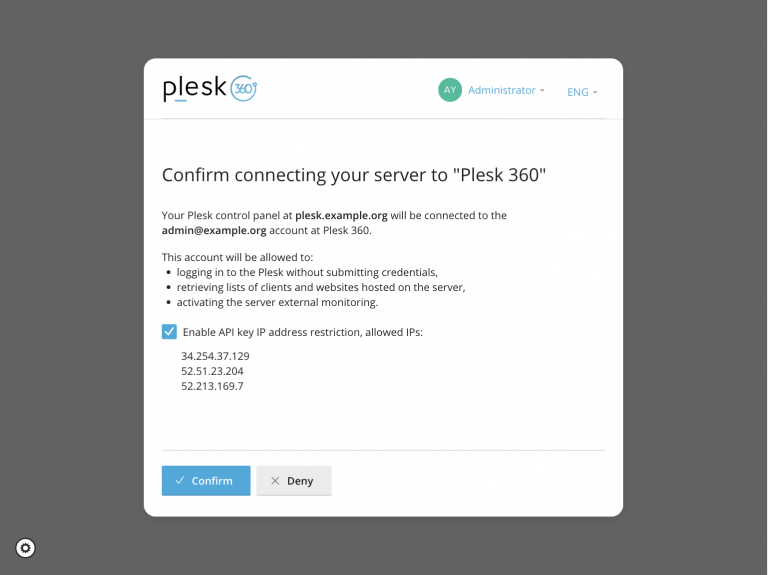
- After clicking on the “Connect” button, you’ll be redirected to the platform360.io website (that you have activated your account on Step #1) to confirm the connection between the Plesk server and the website.
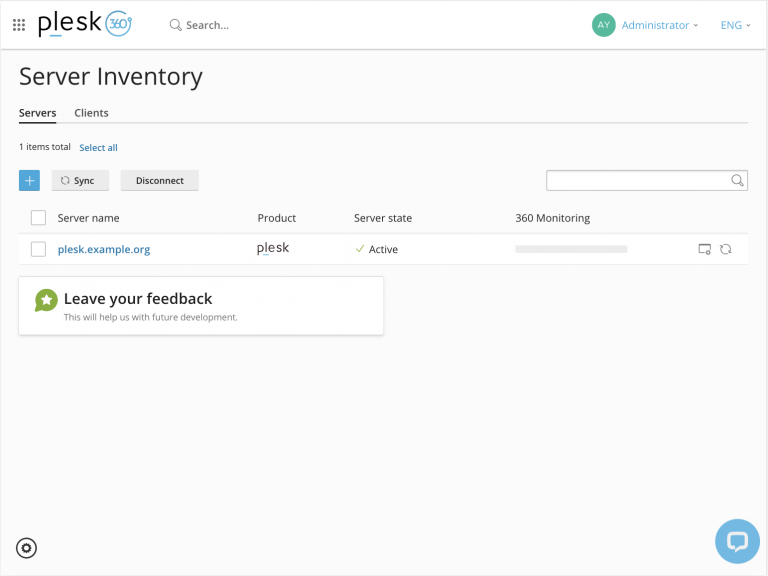
- After confirming, the server will be added to the Server Inventory.
Step 3: Setting Up Monitoring Agents
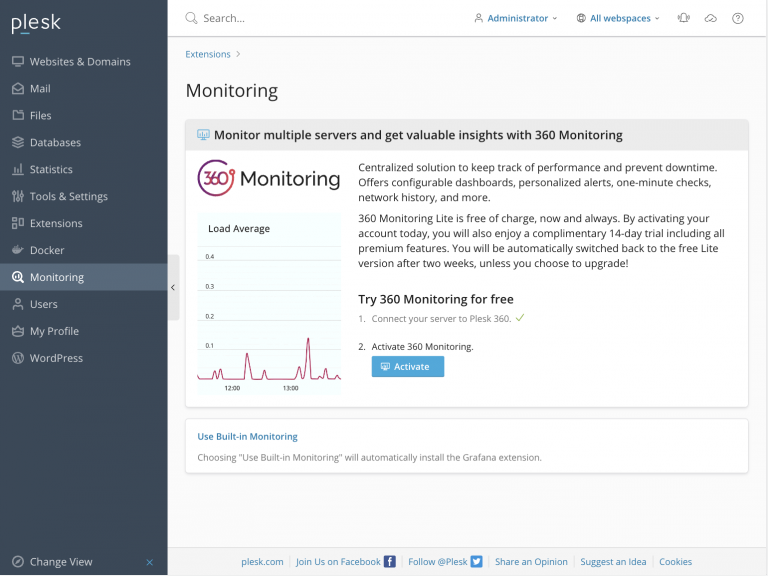
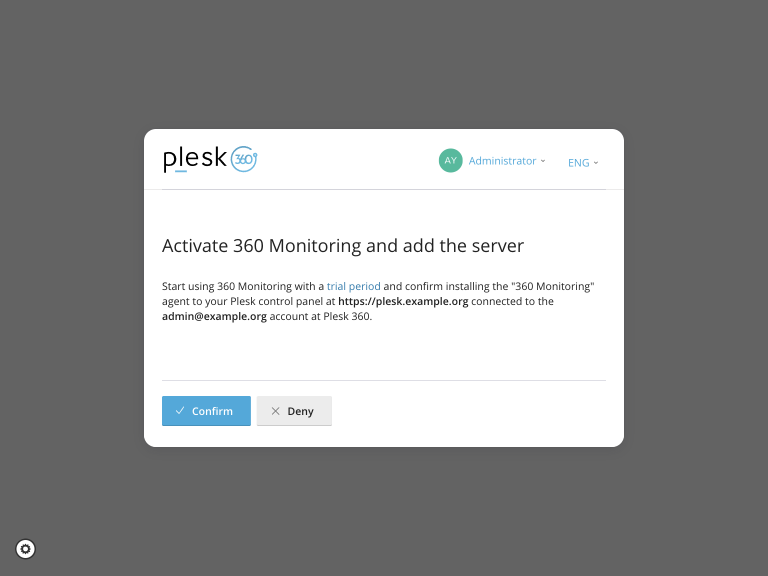
- The next step is to activate 360 Monitoring. Open the Plesk Monitoring extension again. The first step should be marked as completed and the “Activate” button should appear. Click on the “Activate” button.
- After clicking on the “Activate” button, you’ll be redirected to the platform360.io website to confirm the 360 Monitoring activation.
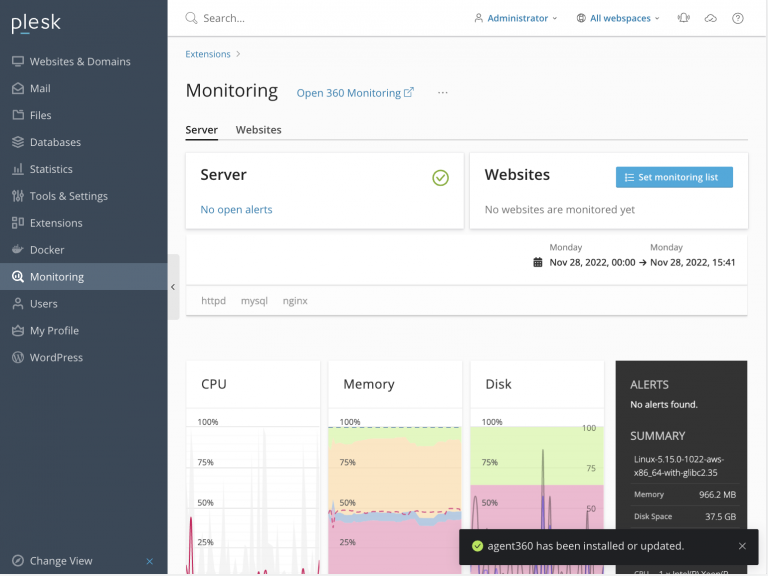
- After confirming, the extension will install a monitoring agent360 on the server. The agent will collect performance data about the server. The collected data will be available inside the Plesk Monitoring extension as well as the 360 Monitoring website. If you have only one server, you can perform popular operations within the extension.
- On the other hand, for those of you that have many servers and want to see all the information about the servers in one place, use different dashboards and customize your own Status Pages, we suggest using the 360 Monitoring website.
Step 4: Setting Up Website Monitoring
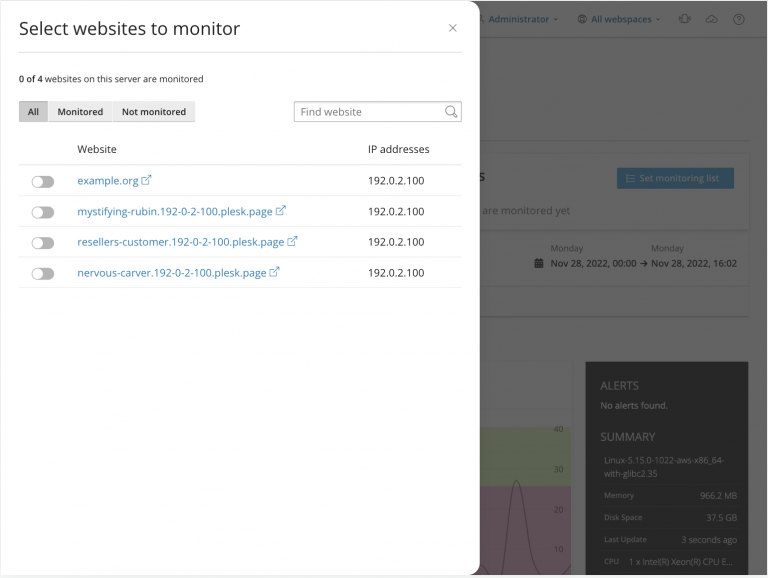
- Once you have activated and configured your server monitoring, the final step is to enable website monitoring. On the Plesk Monitoring page, click “Set monitoring list” and enable websites that you want to monitor.
Step 5: Test Your Server Shut Down (Optional)
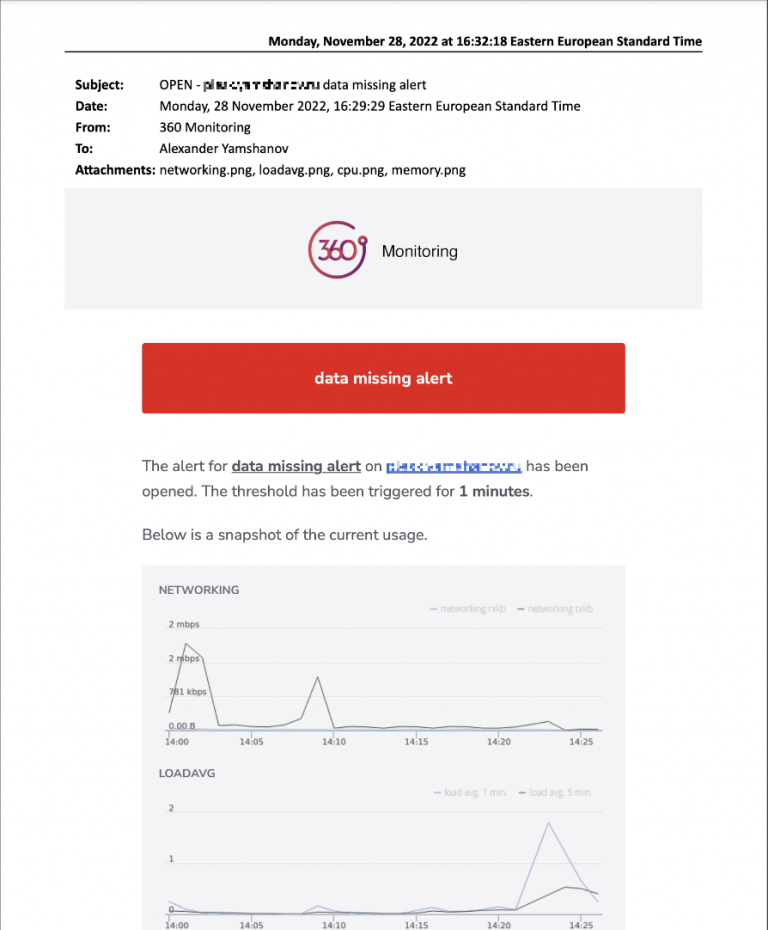
- An email notification as below will be send to you in the event of any interruption base on the setup metric you have configure.
FAQs
-
What is 360 Monitoring?
- 360 Monitoring is a tool that provides real-time server health and performance insights.
-
Can I use 360 Monitoring on any version of Plesk?
- Yes, 360 Monitoring is compatible with most versions of Plesk. Check their website for specific version compatibility.
-
What are the costs involved with 360 Monitoring?
- 360 Monitoring offers various pricing plans based on the features and scale of monitoring required.
-
How do I access my 360 Monitoring dashboard in Plesk?
- The dashboard can be accessed via the 360 Monitoring extension under the 'My Extensions' tab in Plesk.
-
What should I do if the monitoring setup fails?
- Check your internet connection, ensure your API key is correct, and reach out to our customer support via our support helpdesk in the client area for any assistant.
- Check your internet connection, ensure your API key is correct, and reach out to our customer support via our support helpdesk in the client area for any assistant.
- Does 360 Monitoring support the installation on other platform such as cPanel, Windows, and native Linux Operating System?
- Yes it does. 360 Monitoring has comprehensive documentation for this.